
FAQ: Share, Collaborate and Notify
The following questions cover common operations, permissions, collaboration and troubleshooting scenarios when users use BabelBird Enterprise Drive.
34. How do I share a file with others?
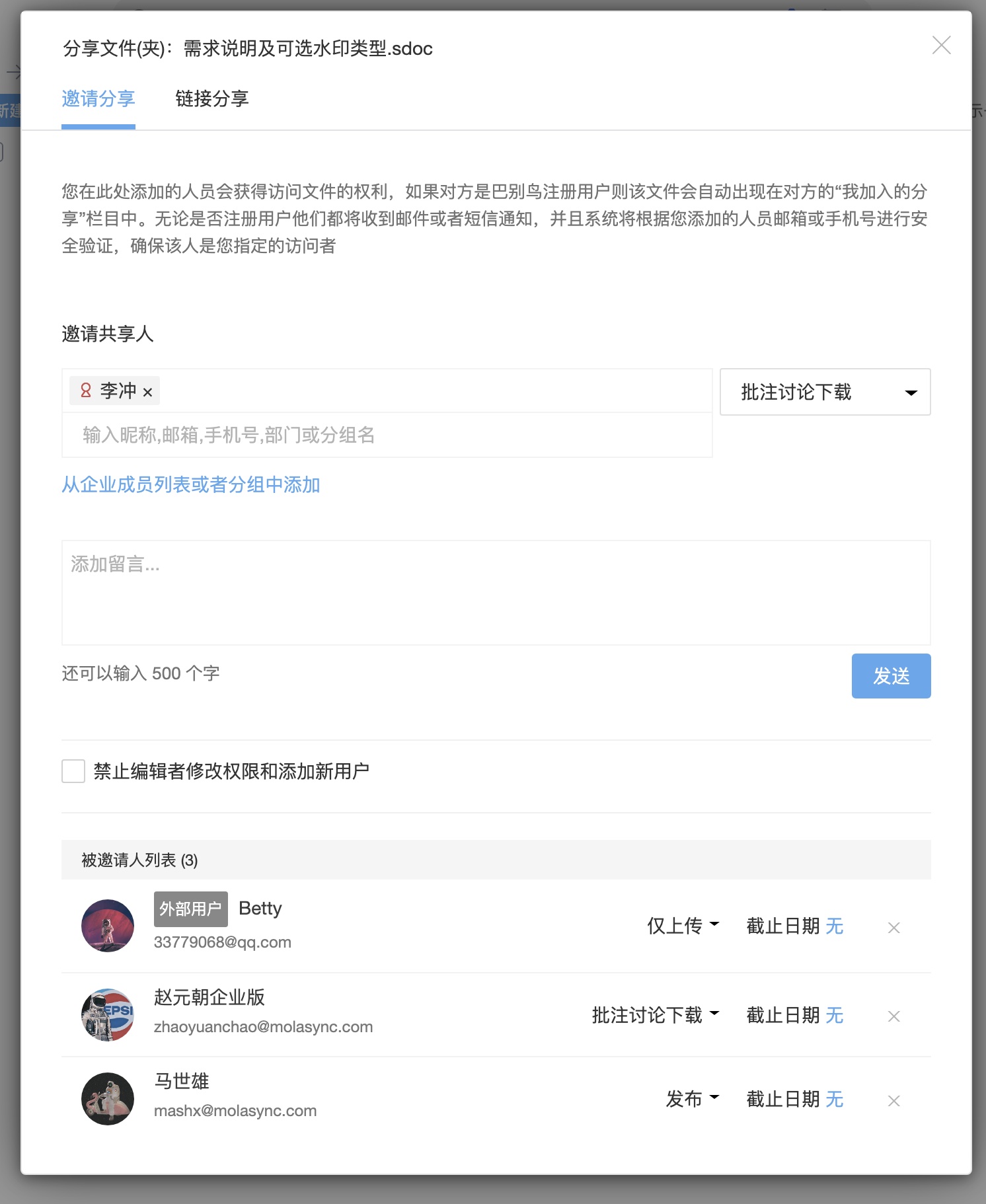
As long as the files have sharing permissions, they can be shared. Right-click the file that needs to be shared and select "Share" to share it. You can also click the sharing shortcut when the mouse is over the file/folder to share it.
An authorization window will pop up for files without sharing permissions. You can follow the window guidance to submit a sharing application. After approval by a member or administrator with file management permissions or the file creator or person in charge, the sharing will be automatically sent to the invitee or the link to the requested file will be opened for sharing.
35. How do I view files that others have shared with me?
In the left column of BabelBird, there is a column called "Shares I added". All the shares you added to other people's shares while logged in can be displayed uniformly in this column. In the same way, you can also click on the "My Sharing" column to view all the files you have opened for sharing.
36. What is the difference between invitation sharing and link sharing?
Invitation sharing targets internal members, departments, groups, or external email/phone recipients. A department invitation includes all descendant-department members without additional invitations. Recipients log in, or unregistered recipients verify a code.
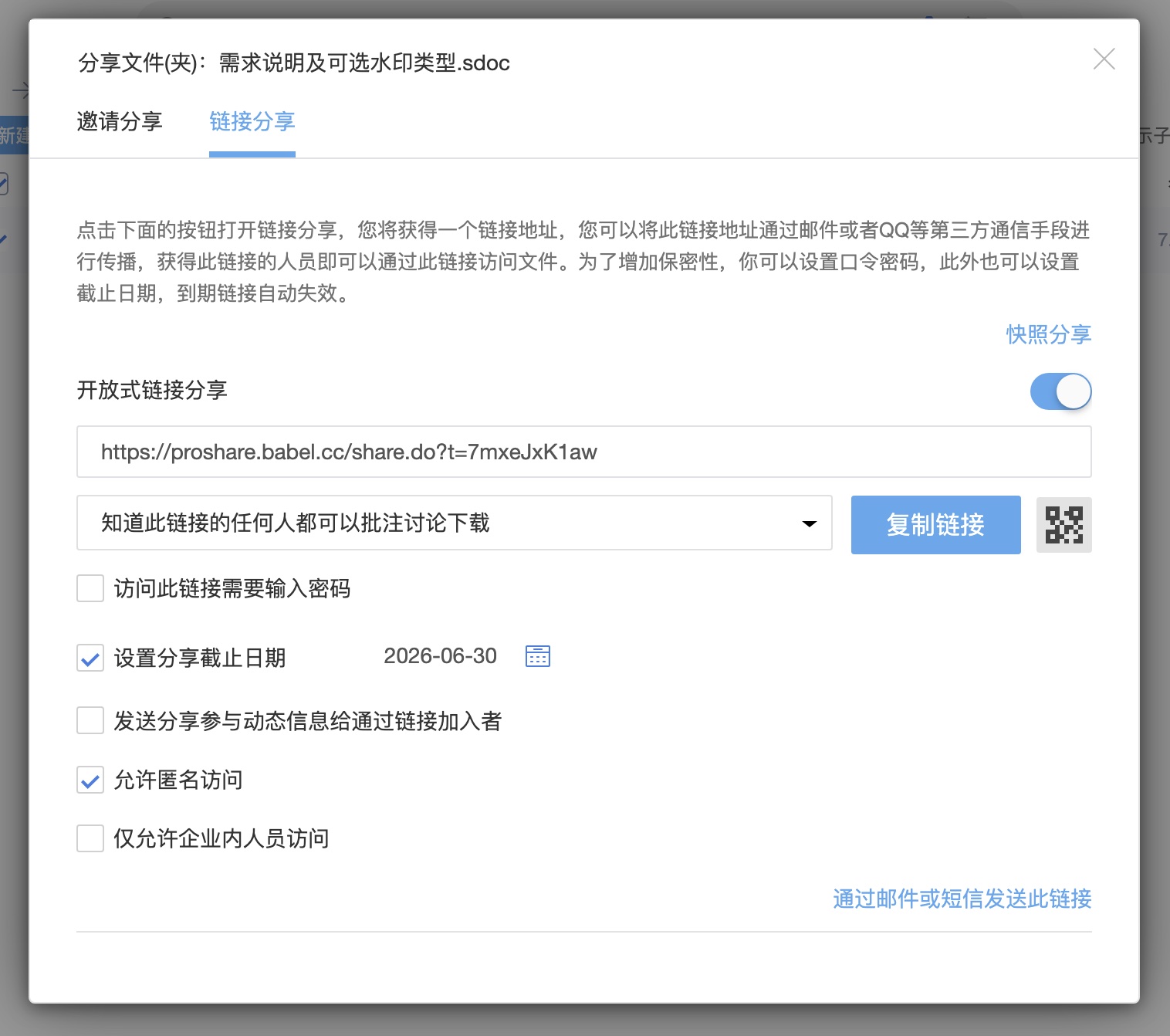
Link sharing distributes access through a URL with optional password, expiry and permissions. Anonymous or enterprise-only access depends on the selected options. Both methods support external collaboration within enterprise policy and sender permissions.
37. How to change my default avatar?
To modify the default avatar, click the avatar icon in the upper right corner and click Settings in the drop-down menu.
Click the Modify Avatar button in the settings to upload the avatar you want to modify.
On the mobile APP, you can click "My" on the bottom bar, click on the avatar at the top, and click on the "Avatar" column to modify it.
38. I want to receive prompt notifications after my colleagues update files. How do I do this?
BabelBird can send update notifications to relevant members when files are updated. In order to prevent excessive notification information from causing harassment, only files that users pay attention to will send update notifications to users.
Click Reminder to Follow under the file that you need to be notified of when it is updated, and select yourself as the follower.
Select yourself in the reminder attention list and confirm it to take effect.
In the future, whenever a colleague updates this file or folder, you will receive a bell notification.
39. Some files or folders have a "control" icon behind their icons. What does it mean?
It means that the file has been subject to "file access control", and the operation permissions on the file may be different from the default permissions of the role.
40. Why can’t my newly uploaded files be searched?
Confirm upload completion, search scope and permissions. Full-text, OCR and vector indexing are asynchronous; timing depends on formats, size, queues and deployment, not a guaranteed 30-minute maximum. Scanned images/PDFs require the relevant enabled OCR/image processing. If results remain absent, check filename search and conversion/indexing errors.
41. Why does the folder size not show in the file list?
The structure of the folder is uncontrollable. The folder hierarchy may be complex and the number of files may be large. Counting the sizes of massive folders will greatly waste server resources and cause slow loading of file lists. Therefore, the size of the folder is not displayed in the list (in fact, the Windows System Resource Manager does not display the size of the folder for the same reason). To check the size of a folder, right-click "View Details" and the size of the folder can be counted on the details page.
42. Why can’t the folder I uploaded overwrite the folder with the same name, but the file can?
Same-name files may offer a new-version or rename option, while folder uploads use a separate rule and some entries suffix the new folder instead of replacing the existing tree. To update an existing folder, upload files inside it or use a confirmed sync task. Test a small set before assuming overwrite behavior.
43. Why does my file prompt that it is locked?
A lock usually indicates client-side editing or an explicit lock to reduce conflicting changes. Collaborative online editing uses a different mechanism. Auto-unlock timing depends on version and administrator settings, not a universal 30 minutes. Contact the editor and confirm their work is saved before manually unlocking.
44. How to unlock locked files?
When you use the BabelBird client to edit a document, the document is automatically locked to prevent other collaborating users from editing at the same time and causing version conflicts. If there is a lock mark on your file, it means that someone is editing the file and it is locked. Only file editors and people with file management permissions (such as department managers) can manually unlock locked files. People with unlocking permissions right-click the locked file and select "Unlock File".
45. How to roll back a file version?
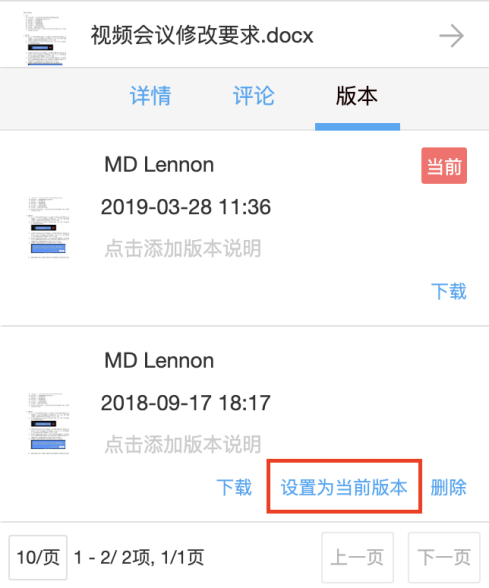
BabelBird supports historical version management and rollback of files. A file with a version mark in the lower right corner of the file icon means there are multiple versions. Right-click the file and open "View Version" in the menu to view the version information of the file. Click the file icon or thumbnail in the version information to preview that version of the file. Click the "Set as current version" button to roll back the historical version to the current version. After the rollback operation, everyone who wants to access the file will open the current version of the file.
46. What is dynamics?
Dynamics is a streaming list in BabelBird used to display user-related files and department updates. Use dynamics to intuitively understand what is happening to members, files, departments, and projects related to you throughout the enterprise.
Dynamic information includes file upload, download, update, deletion and other information; file comments and discussion content; other members @you information.
Comments and discussion messages within the dynamic can be replied to directly in the dynamic list.
Dynamic information is usually kept for three months.
47. Can I search for updates?
The search box on the right side of the top of the dynamic column is a dynamic search box, which can search for dynamic content.
48. What is a discussion group?
The discussion group is equivalent to a group chat organized by department and project. Each project, department, or team (professional version) has its own discussion group. You can enter text in the discussion group for group chat.
A discussion group is automatically created every time a department or project is created.
Members who join a project or department automatically join that project or department's discussion group.
You can view all discussion groups you have joined in the discussion group section.
Discussion groups support sending files.
49. What is a workbench? How to use the workbench?
The workbench is a column in BabelBird. It organizes and displays the columns and file lists that the user is interested in in the form of cards. The display content of the workbench can be customized. Proper use of the workbench can serve as an entrance to view files and manage work from more dimensions.
The workbench can be customized, and each user can customize his own workbench according to his own needs.
Cards on the workbench can be sorted by dragging them. Press and hold the mouse on the top of the card and drag to sort the cards as needed.
If you feel that the content of the card is not displayed enough, you can click the more icon (three dots) on the upper right side of the card and select the "More" option to open more content of the card in a new window.
Cards can be deleted by clicking on the more icon (three dots) on the upper right side of the card and selecting the "Remove Card" option to remove the card. Card removal does not affect the data displayed by the card.
Click the Add Cards button to add more cards as needed.
There are 17 card chart types available, and you can also customize a folder to be accessed as a card in the workbench.
50. I don’t want to be harassed by too many dynamic messages, what should I do?
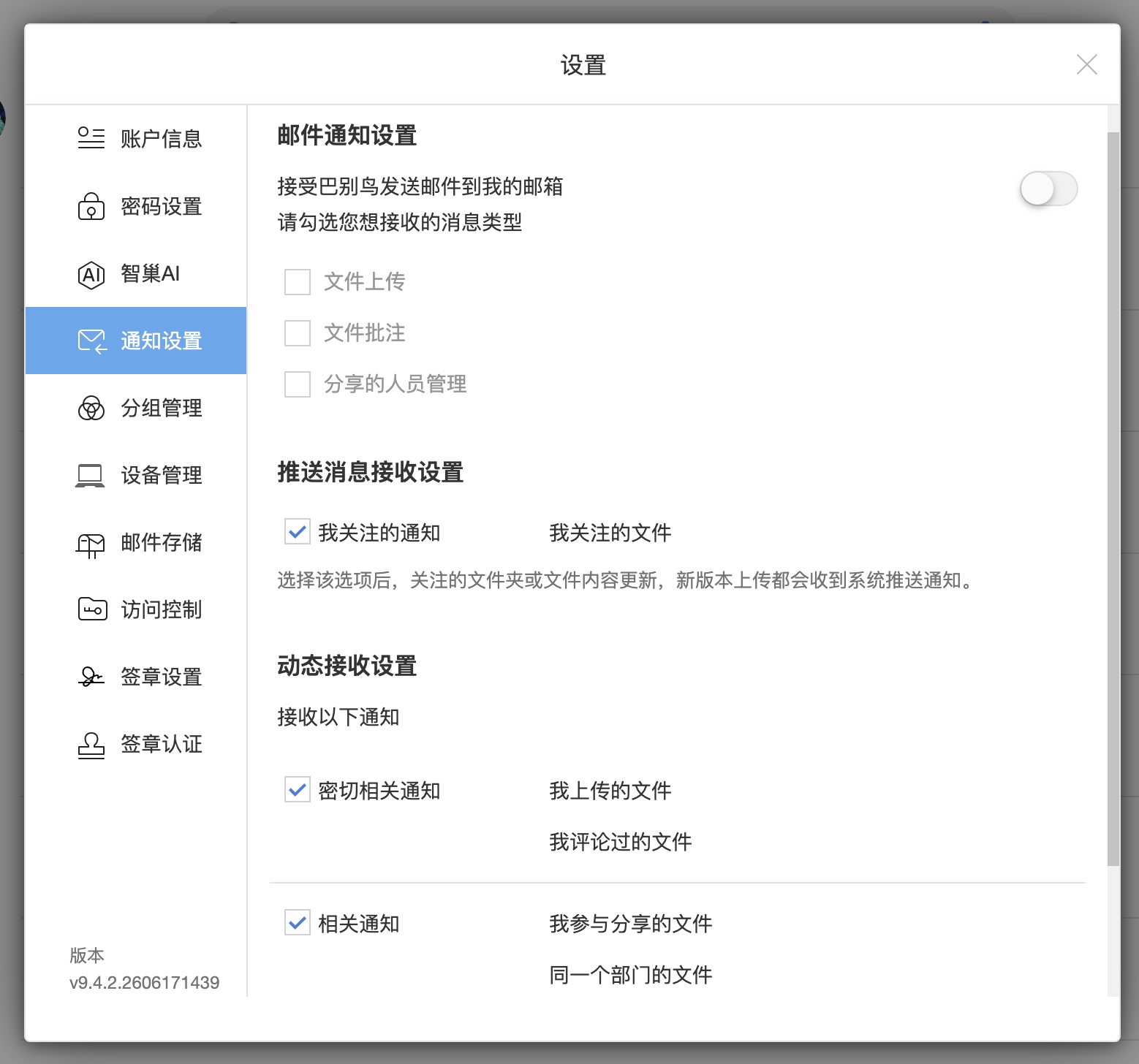
When you open the client, dynamic information will appear in the lower right corner in the form of a pop-up window. If you need to turn off the dynamic information you do not want to receive, you can click the avatar - Settings - Notification settings, set it in the dynamic notification settings, and select the type of dynamic notifications you want to receive.