
Version Management
File changes can be saved as new versions for reviewing history and recovering from unwanted edits. Available actions and retention depend on file permissions and enterprise policies.
Creating Versions
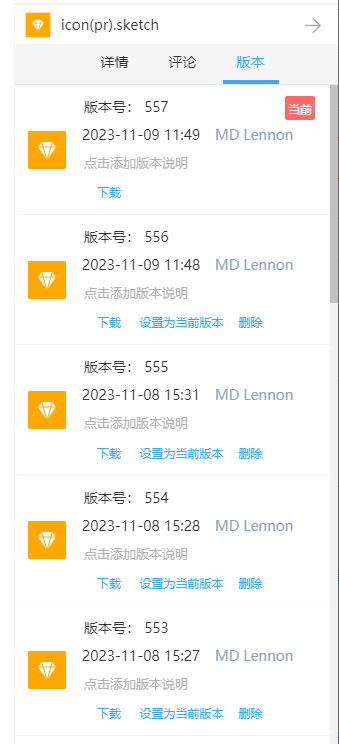
Upload a new version, choose to update an existing same-name file, or save changes through local editing, online editing, a synchronized folder or a mapped drive. A cloud version is available only after saving and uploading successfully. Check transfer status when offline or when an upload fails.
Reviewing History
Open the Versions tab in file details. With the required permission, review update times, authors and notes, preview or download a retained version, and compare versions for supported preview formats. Annotations belong to specific versions; consider their records before deleting a version.
Restoring a Version
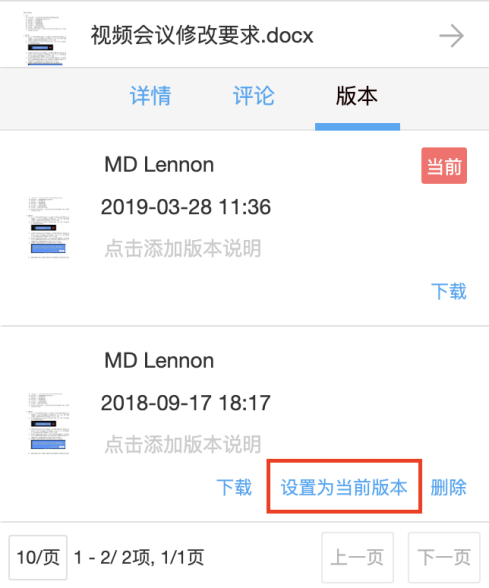
- Select the file and open its Versions tab.
- Review the desired historical content and choose “Set as current version”.
- Verify the current content. Coordinate with other editors to avoid overwriting the restoration.
Retention and Recovery Limits
Administrators can configure version counts and retention periods. Versions already purged by policy or explicitly deleted cannot be recovered from the version list alone.
A retained, intact version from before an accidental edit or ransomware incident may assist recovery. Versioning does not block malware and does not replace independent backups, disaster recovery or restoration tests.
Related: Preview and comparison · Search · Security